> ## Documentation Index
> Fetch the complete documentation index at: https://docs.qu.ai/llms.txt
> Use this file to discover all available pages before exploring further.
# KawPoW Mining with HiveOS
> Install and run a GPU miner on HiveOS using a Flight Sheet.
## Introduction
Here, we'll be installing and running [SRBMiner-Multi](https://github.com/doktor83/SRBMiner-Multi) on [HiveOS](https://hiveon.com/os/) using a [Flight Sheet](https://hiveon.com/knowledge-base/guides/fs/). HiveOS also provides a web based dashboard for streamlined management and maintenance of your Quai Network GPU miner.
### Requirements
In order to run the quai-gpu-miner on HiveOS and mine valid blocks, you'll need the following:
## Environment Setup
### HiveOS
For this tutorial, you'll need a HiveOS machine. Instructions for how to install HiveOS on your rig and configure it can be found on the [HiveOS installation documentation](https://hiveon.com/install/).
### Dashboard
Once you've installed HiveOS, configure your GPU workers into a Farm. Once configured, you'll be able to manage workers from a [HiveOS dashboard](https://hiveon.com/knowledge-base/getting_started/start_dashboard_setup/) and utilize Flight Sheets.
## Installation
To start the Flight Sheet installation, open up your [HiveOS Farm Dashboard](https://the.hiveos.farm/).
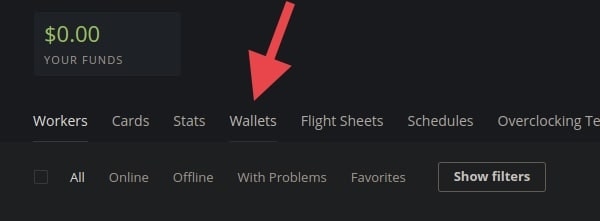
In the **farm menu**, click the *wallets* tab.
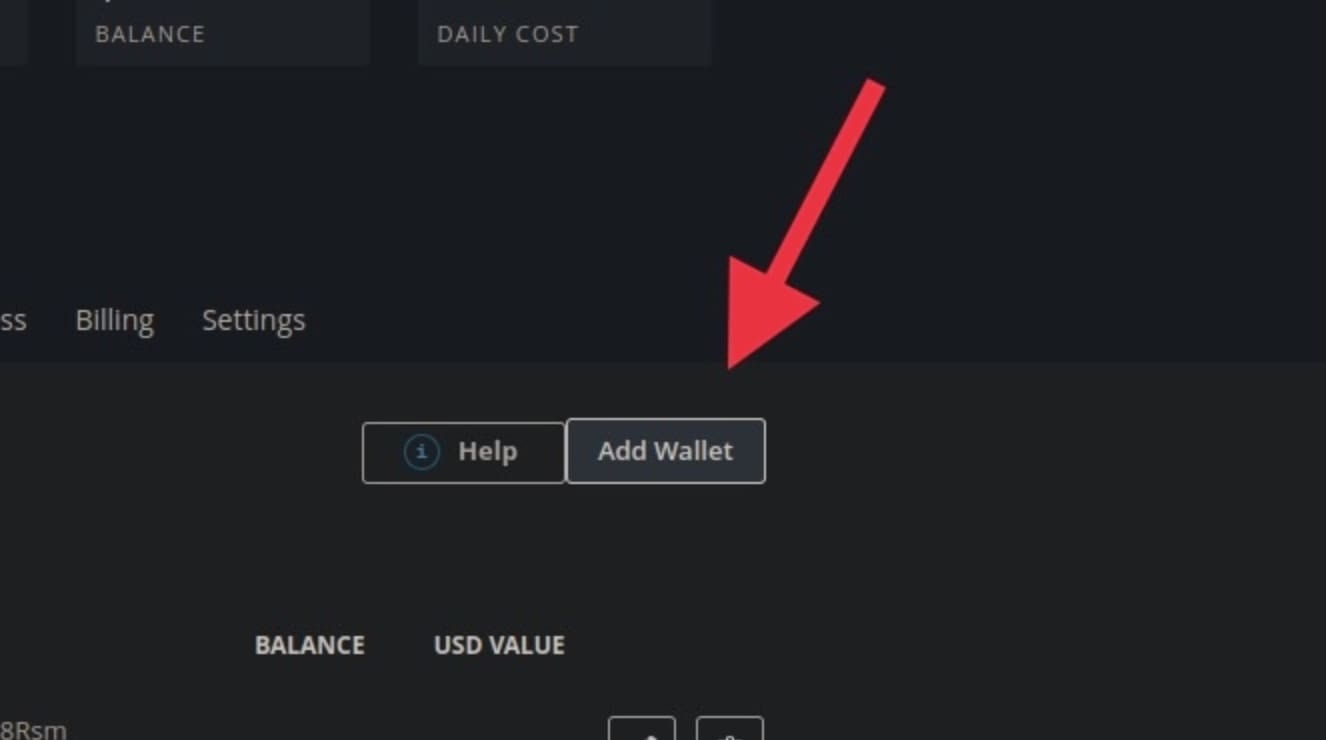
 On the right side of the page, click the *add wallet* button.
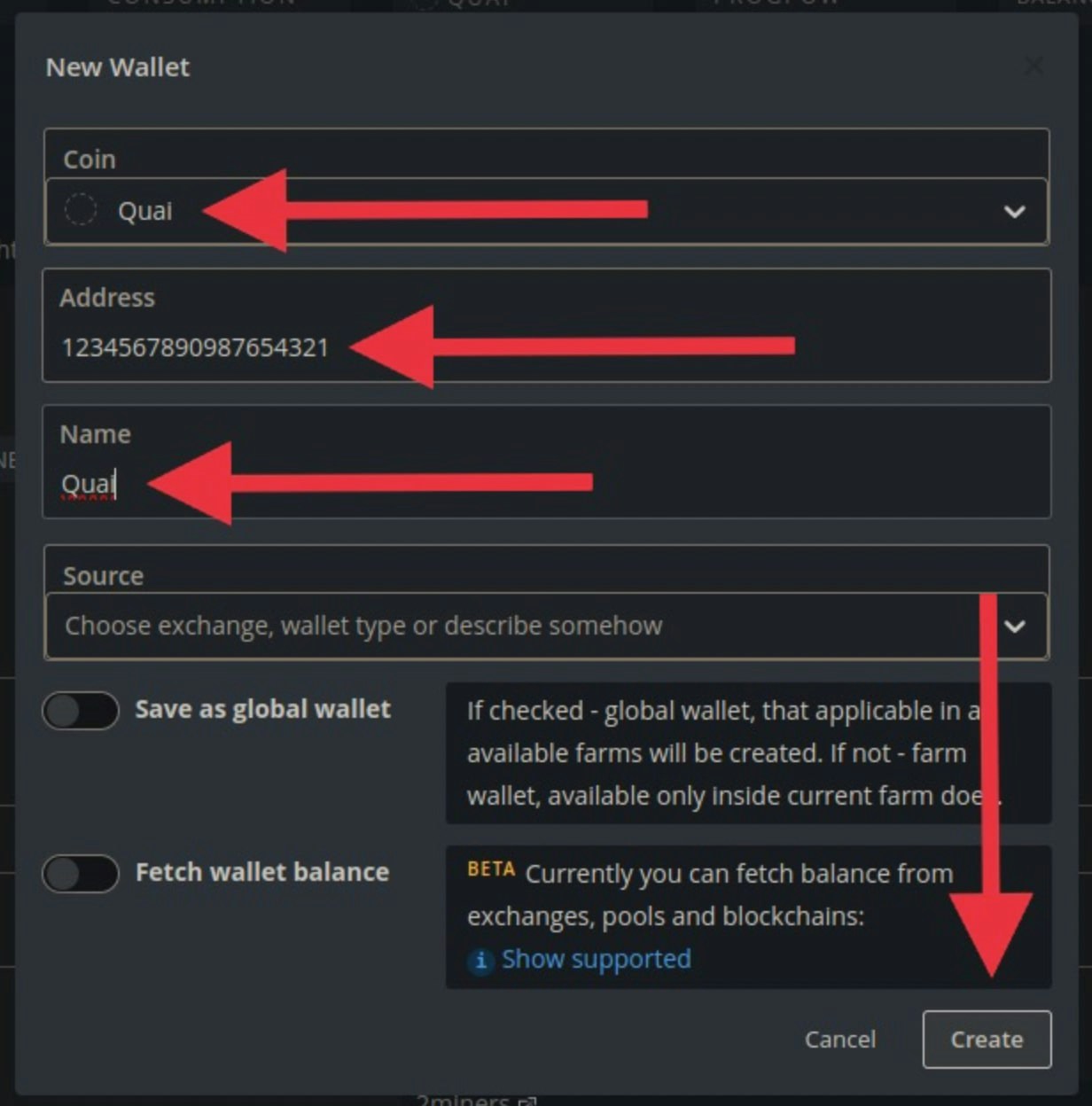
 Fill in the wallet information:
* For the **Coin** field, type `Quai` then click on the *Create Quai* option in the drop-down menu.
* In the **Address** field, copy/paste your Quai wallet address. (This address is not used by the miner, so you can put any address here.)
* For **Name** field, choose a name for your wallet.
To finish creating the wallet, click "Create" in the bottom right corner.
Fill in the wallet information:
* For the **Coin** field, type `Quai` then click on the *Create Quai* option in the drop-down menu.
* In the **Address** field, copy/paste your Quai wallet address. (This address is not used by the miner, so you can put any address here.)
* For **Name** field, choose a name for your wallet.
To finish creating the wallet, click "Create" in the bottom right corner.
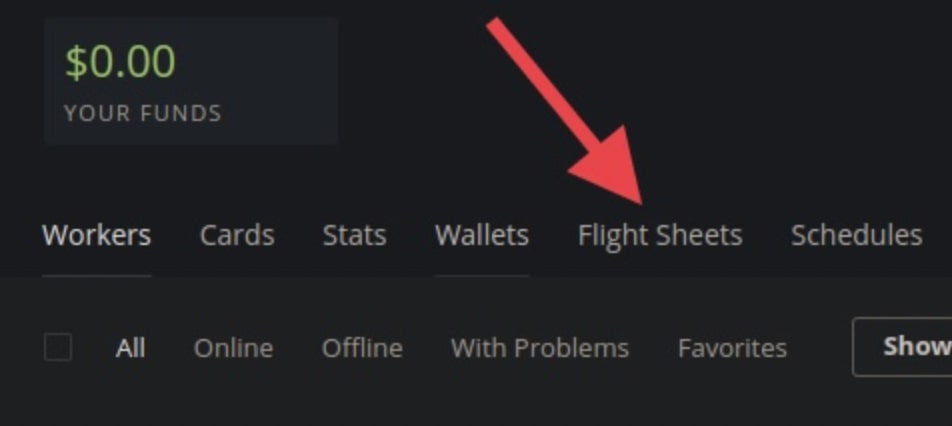
 In the **farm menu**, click the flight sheets tab.
 Click "add flight sheet". Fill out the flight sheet information:
* For the Coin select `Quai`.
* For the wallet select the wallet you configured above.
* For pool select `Configure in miner`.
* For the **Miner name**, select `SRBMiner-MULTI`.
Next click `Setup Miner Config` right above where you selected `SRBMiner-MULTI`.
Click "add flight sheet". Fill out the flight sheet information:
* For the Coin select `Quai`.
* For the wallet select the wallet you configured above.
* For pool select `Configure in miner`.
* For the **Miner name**, select `SRBMiner-MULTI`.
Next click `Setup Miner Config` right above where you selected `SRBMiner-MULTI`.
 Configure your SRBMiner.
* Set the Hash algorithm to `kawpow`.
* for the Wallet type `%WAL%.%WORKER_NAME%`.
* For the **Pool URL**, type `stratum://EXTERNALIPADDRESS:PORT`. Replace EXTERNALIPADDRESS and PORT with your stratum ip address and port.
Configure your SRBMiner.
* Set the Hash algorithm to `kawpow`.
* for the Wallet type `%WAL%.%WORKER_NAME%`.
* For the **Pool URL**, type `stratum://EXTERNALIPADDRESS:PORT`. Replace EXTERNALIPADDRESS and PORT with your stratum ip address and port.
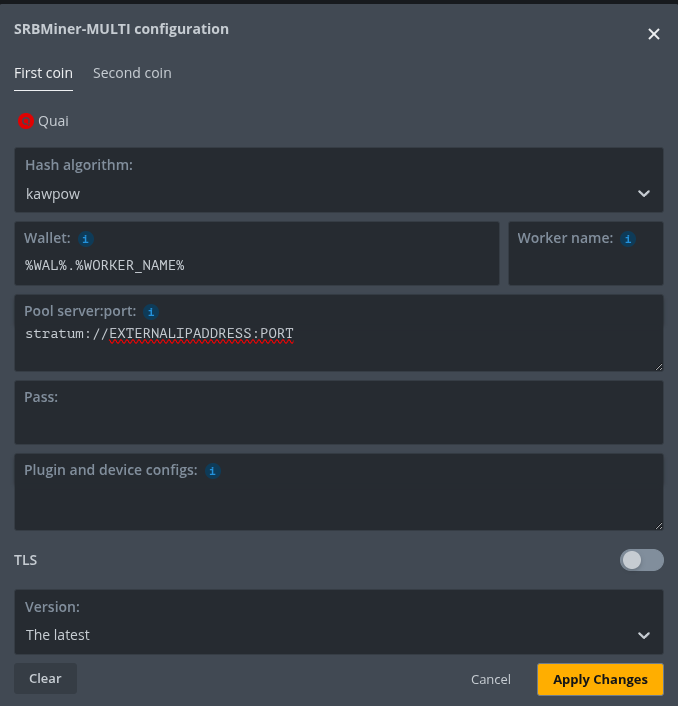 On bottom right corner, click "Apply Changes".
Once the miner is configured you should give your Flight Sheet a name and click `Create Flight Sheet`.
On bottom right corner, click "Apply Changes".
Once the miner is configured you should give your Flight Sheet a name and click `Create Flight Sheet`.
 ## Launch The Flight Sheet
The steps to begin mining are:
* simply visit your worker's page on HiveOS.
* Navigate to the Flight Sheet tab.
* Launch the Flight Sheet you just created.
## Launch The Flight Sheet
The steps to begin mining are:
* simply visit your worker's page on HiveOS.
* Navigate to the Flight Sheet tab.
* Launch the Flight Sheet you just created.
 It will take a few seconds for HiveOS to install and run the flightsheet on your worker machine. Once running, SRB Miner will run through an auto-tune process before it settles in and begins mining at optimal performance.
If you're logged into your HiveOS Worker you should see output similar to the following. If not, simply run the command `hive-console` to open the proper view.
It will take a few seconds for HiveOS to install and run the flightsheet on your worker machine. Once running, SRB Miner will run through an auto-tune process before it settles in and begins mining at optimal performance.
If you're logged into your HiveOS Worker you should see output similar to the following. If not, simply run the command `hive-console` to open the proper view.
 You are now mining Quai with your GPUs on the KawPoW algorithm using HiveOS and SRB Miner!