> ## Documentation Index
> Fetch the complete documentation index at: https://docs.qu.ai/llms.txt
> Use this file to discover all available pages before exploring further.
# Verifying Contract on Quaiscan
> A guide to verifying your smart contracts on Quaiscan.
## Introduction
This article shows how to verify a smart contract on Quai Network's block explorer [Quaiscan](https://quaiscan.io/).
## Prerequisites
To deploy contracts and verify them on Quaiscan we'll need a few dependencies. Here's an overview of all the main dependencies we'll be using.
| | |
| --------------------------------------------------------------------------------------------- | ---------------------------------------------------------------------------- |
| [**NodeJS**](https://nodejs.org/en/download/) | Javascript runtime environment. Use the LTS version. |
| [**hardhat-example**](https://github.com/dominant-strategies/hardhat-example) | A Hardhat project with sample contracts and deploy scripts for Quai Network. |
| [**hardhat-deploy-metadata**](https://github.com/dominant-strategies/hardhat-deploy-metadata) | A plugin for hardhat that uploads contract metadata to IPFS |
| [**Quais.js**](https://www.npmjs.com/package/quais) | A JavaScript library for interacting with Quai Network. |
## Walkthrough
Today we’re going to be verifying a smart contract on Quaiscan, Quai Network's block explorer.
This guide follows the [Deploy with Solidity](https://docs.qu.ai/guides/development/solidity) guide, so make sure you're familiar with that and the [hardhat-example](https://github.com/dominant-strategies/hardhat-example) repo before beginning.
### Deploy a Smart Contract
Following the [Deploy with Solidity](https://docs.qu.ai/guides/development/solidity) guide, deploy a smart contract complete with IPFS metadata.
When using the [hardhat-example](https://github.com/dominant-strategies/hardhat-example) repo the command should be `npx hardhat run scripts/deployERC20.js` which produces output similar to the following:
```
File added with CID: QmPCoBa1bCFmRoTD7GuexJqBAy7pqg8J4b8B48q5DgxUEV
Original IPFS hash found in bytecode: QmPCoBa1bCFmRoTD7GuexJqBAy7pqg8J4b8B48q5DgxUEV
Metadata JSON for ERC20 saved to /../hardhat-example/Solidity/metadata/ERC20_metadata.json
Transaction broadcasted: 0x0032004cc6a910b8733ad9502caa315beb74f3409bee2b481116bddfb9c8880d
Contract deployed to: 0x0015dFe3280783CD9b126D8E0ccc728B6490b2b2
```
In the above output you'll see that the contract's metadata was uploaded to `ipfs.qu.ai` with the following hash: `QmPCoBa1bCFmRoTD7GuexJqBAy7pqg8J4b8B48q5DgxUEV`
Your hash **will be different**. Make sure you capture it as we'll need it in the next step.
### Download the IPFS metadata
When using the [hardhat-deploy-metadata](https://github.com/dominant-strategies/hardhat-deploy-metadata) plugin, the IPFS metadata is stored in the project under the `metadata` folder, but isn't formatted properly for Quaiscan.
We'll need to download the proper format from IPFS to upload into Quaiscan and verify our contract.
Run the following command using **your IPFS hash** when you deployed your contract to download the metadata and save it as `ipfsMeta.json`.
```
curl https://ipfs.qu.ai/ipfs/[YOUR IPFS METADATA HASH] > ipfsMeta.json
```
### Verify Smart Contract on Quaiscan
Now that we have a deployed smart contract and the IPFS metadata in proper JSON formatting, we can verify our smart contract on Quaiscan.
Open your browser and visit the [Verify Contract](https://quaiscan.io/contract-verification?shard=) page on Quaiscan.
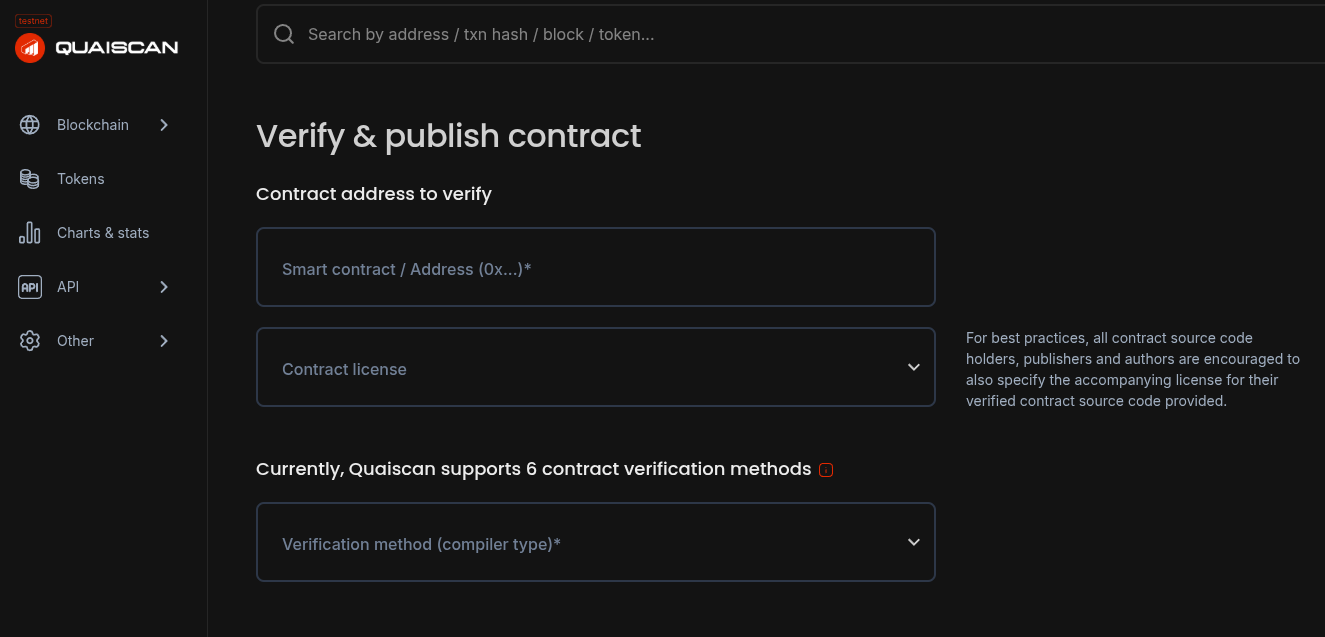 Using this page fill in all the details of your contract exactly as it's been written.
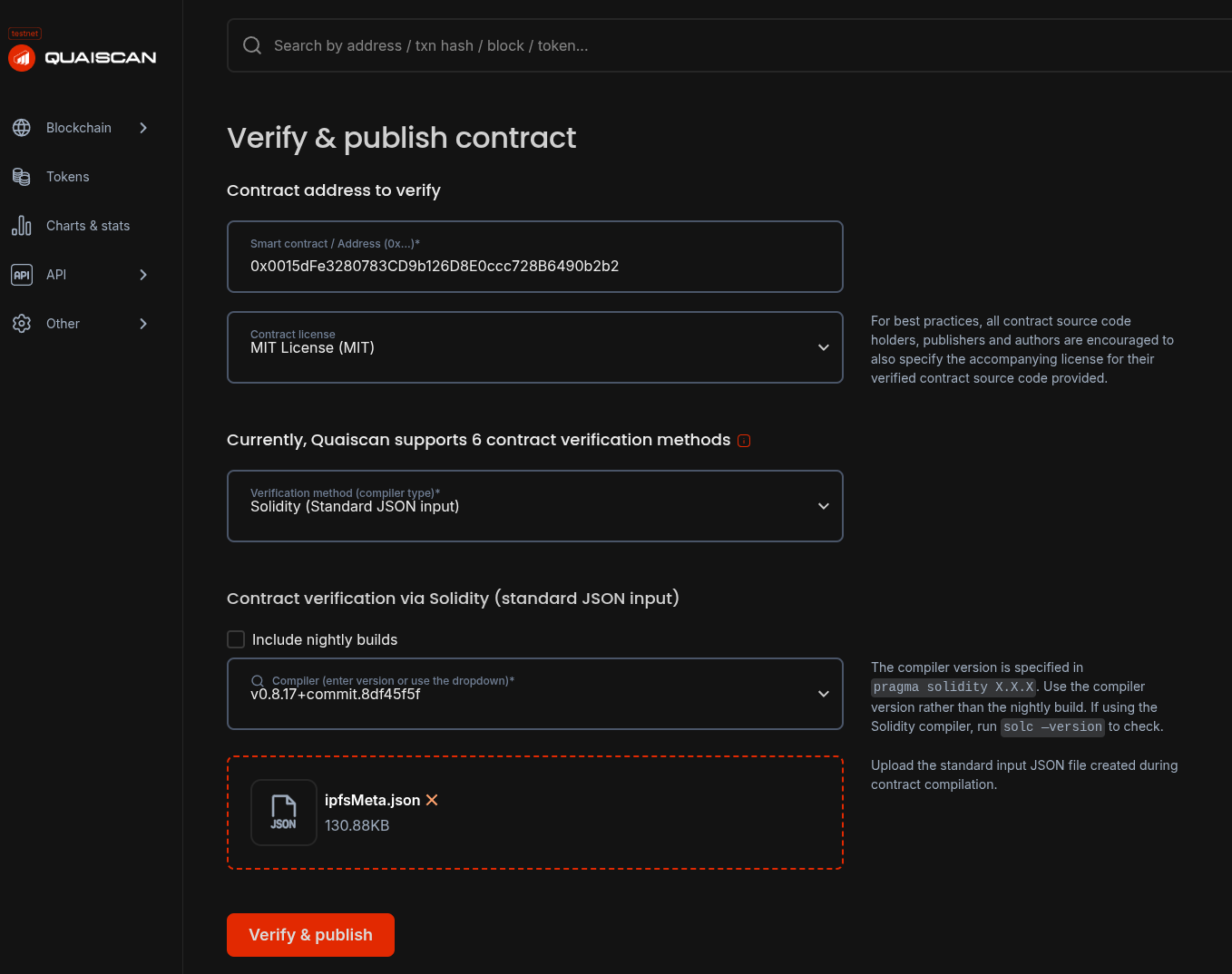
You'll need the correct contract address and license indicated by the `SPX-License-Identifier` in your contract's code.
Select **Solidity (Standard JSON input)** as the Verification Method and the correct version of the Solidity Compiler used to compile your contract.
Finally upload `ipfsMeta.json` and click **Verify & Publish** to verify your smart contract.
Using this page fill in all the details of your contract exactly as it's been written.
You'll need the correct contract address and license indicated by the `SPX-License-Identifier` in your contract's code.
Select **Solidity (Standard JSON input)** as the Verification Method and the correct version of the Solidity Compiler used to compile your contract.
Finally upload `ipfsMeta.json` and click **Verify & Publish** to verify your smart contract.
 Once successful you can visit your contract's page on Quaiscan to interact with it directly and see it's verification status.
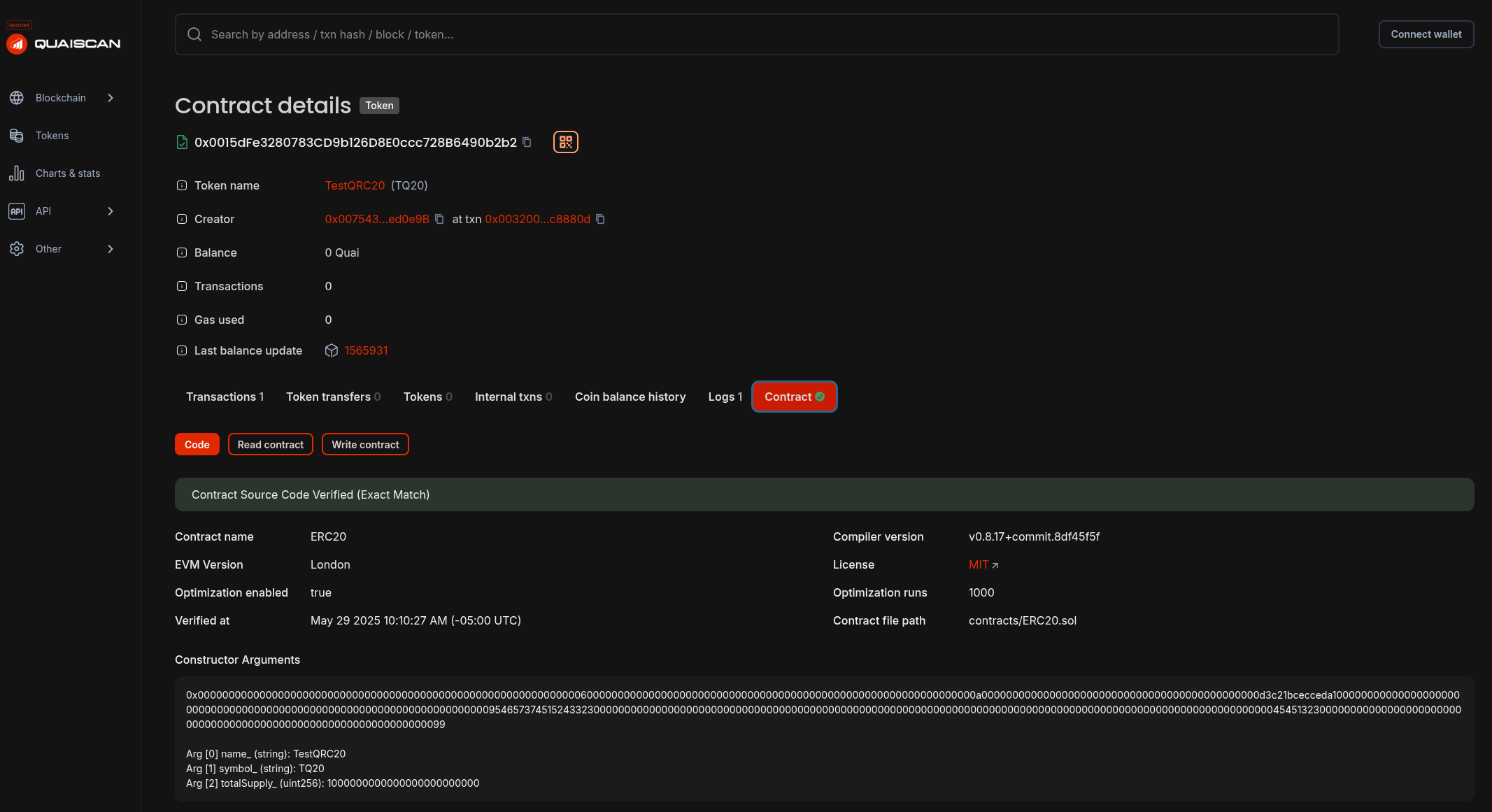 Congratulations! You have just verified your smart contract on Quaiscan!